
A MacBook is easy to carry, but its limited built-in ports can become inconvenient at a desk. An external monitor, keyboard, storage drive, memory card, and wired network connection may all need a place to connect. A docking station brings many accessories together, often letting you connect or disconnect your workstation with one cable. Choosing one involves more than counting ports. Display compatibility, charging capacity, data speeds, and your exact MacBook model all matter. Planning ahead can prevent buying a dock that cannot support your everyday setup.
Begin with Your Everyday Connections
List the devices you regularly use before comparing models. A home office may need a monitor connection, USB ports, and Ethernet. A photographer may need SD or microSD slots, while someone handling large files may prioritize fast external-drive connections.
Check the plugs on your accessories. USB-A is common on keyboards and older drives; HDMI connects many monitors; and Ethernet provides a wired network connection. Choose the ports you will use rather than paying for features that will sit idle. A USB-C connector does not guarantee identical capabilities. Data transfer, charging, and video support depend on the technology behind the connection.
Verify Monitor Compatibility Carefully
An external monitor is a common reason to buy a MacBook docking station, but multiple video outputs do not guarantee that multiple independent screens will work. Display support depends on the MacBook’s processor and model, the software, and the dock’s design. Some docks use DisplayLink technology to add display connections. These may require a driver and permission settings. Others rely on the Mac’s native video capabilities. Check which approach the dock uses and whether it suits your needs.
Confirm the supported resolution and refresh rate alongside your MacBook’s display limits. One monitor for documents has different requirements from two high-resolution screens for editing. Do not rely only on labels such as “dual display”; verify the exact configuration.
Match Charging Output to Your MacBook
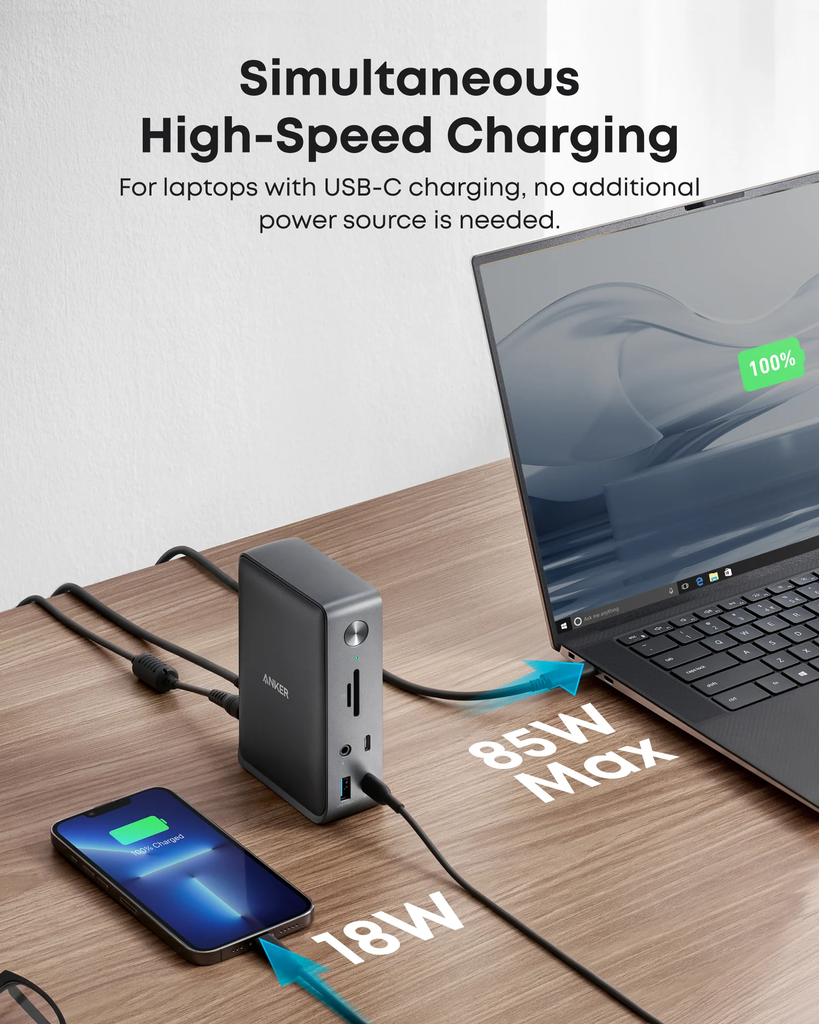
Many docks charge a laptop through USB-C Power Delivery, reducing the need for a separate cable. However, the wattage supplied to the dock is not necessarily what reaches the MacBook. The dock and its accessories use some power, so compare the stated host-charging output with your laptop’s requirements. A lower-power dock may suit lighter tasks but could charge slowly during demanding work. Check whether a power adapter is included or sold separately, as this affects the overall cost.
Look Beyond the Shape of the Ports
USB-C describes a connector, not a guaranteed transfer speed. USB standards and Thunderbolt have different capabilities, and similar-looking ports may handle data, video, and power differently. This matters when transferring large files or using a fast external SSD. Read the specifications for individual ports. If you rely on wired internet, check the Ethernet speed too. Use the included host cable when possible; a replacement must support the dock’s expected data, video, and power features.
Consider Where the Dock Will Sit
A dock should fit the desk, not make it harder to use. Check whether frequently used ports are easy to reach and whether permanent cables can stay neatly behind the monitor. Front-facing USB or card slots suit temporary connections, while rear-facing ports can reduce visible clutter. Allow room for ventilation. A dock may become warm while charging a laptop and transferring data, so avoid covering it or placing it in a tight enclosure. Brands such as Anker offer different connection accessories, but the suitable design depends on your equipment and workspace.
Choose for the Way You Work
A large dock is not automatically the best option when choosing a macbook docking station. A compact model may suit someone who moves between locations, while a powered desktop dock can work better for a permanent setup. Focus on your MacBook’s limits and the connections you will genuinely use. Before ordering, confirm your MacBook model, list the required ports, verify display support, and compare charging output. These checks matter more than appearance or port count alone.
Also READ-Safeguarding Assets: Essential Monitoring for Remote Oil Sites
Conclusion
A docking station can make a MacBook setup more convenient when it matches the laptop’s capabilities. Pay attention to displays, power delivery, and data speeds, then choose a layout that suits your accessories. The right match makes connecting your workstation a simple daily routine.
FAQs
Does every docking station work with every MacBook?
No. Display support, charging, and other features vary by MacBook model and dock.
Is a USB-C dock the same as a Thunderbolt dock?
No. USB-C is a connector type; Thunderbolt is a connection standard with specific performance and compatibility requirements.
Can a docking station charge a MacBook?
Many support USB-C Power Delivery. Check the power delivered to the laptop, not just the dock’s total input rating.
Will two video ports support two external monitors?
Not always. Confirm that both the MacBook and dock support your planned multi-monitor arrangement.
Can I keep my dock connected all day?
Usually, yes. Place it on a stable, ventilated surface and follow the manufacturer’s instructions.

